
Link your phone to an Edge Server
Needs Edge Server 5.4.0 or later. To link a sensor, you need Edge Server 5.4.2 or later and mobile app 5.4.2 or later.
The Growbud mobile app can use an Edge Server with no Growbud Cloud account. You sign in with an account on the Edge Server. The app then uses the Edge Server for every page:
- Home
- Monitor
- Zones
- Alerts
- Settings
- Add device
- Outlets
- Site
- Layout
- Controllers
A sensor that you sync over Bluetooth sends its readings to the Edge Server.
Before you start
- You need an account on the Edge Server. The installer makes the first administrator. See Get the Edge Server. An administrator can add more accounts.
- Change the first password of the administrator account. The Edge Server does not give a phone code until you change it.
- Put the phone on the same network as the Edge Server. Or use a VPN (a private link to that network from outside it).
Sign in
You can scan a code, or you can type the address.
Scan a code
- On a computer, open the desktop app and sign in to the Edge Server.
- Open Settings, then Phone sign-in. The Connect a phone card shows a QR code.
- On the phone, open the mobile app.
- On the welcome screen, select Use an Edge Server. If you are signed in to Growbud Cloud, open Settings, then Edge Server.
- Select Scan the Edge Server code.
- Scan the QR code.
The phone signs in as you, with no password. You can use the code one time. It expires after 5 minutes. To get a new code, select New code.
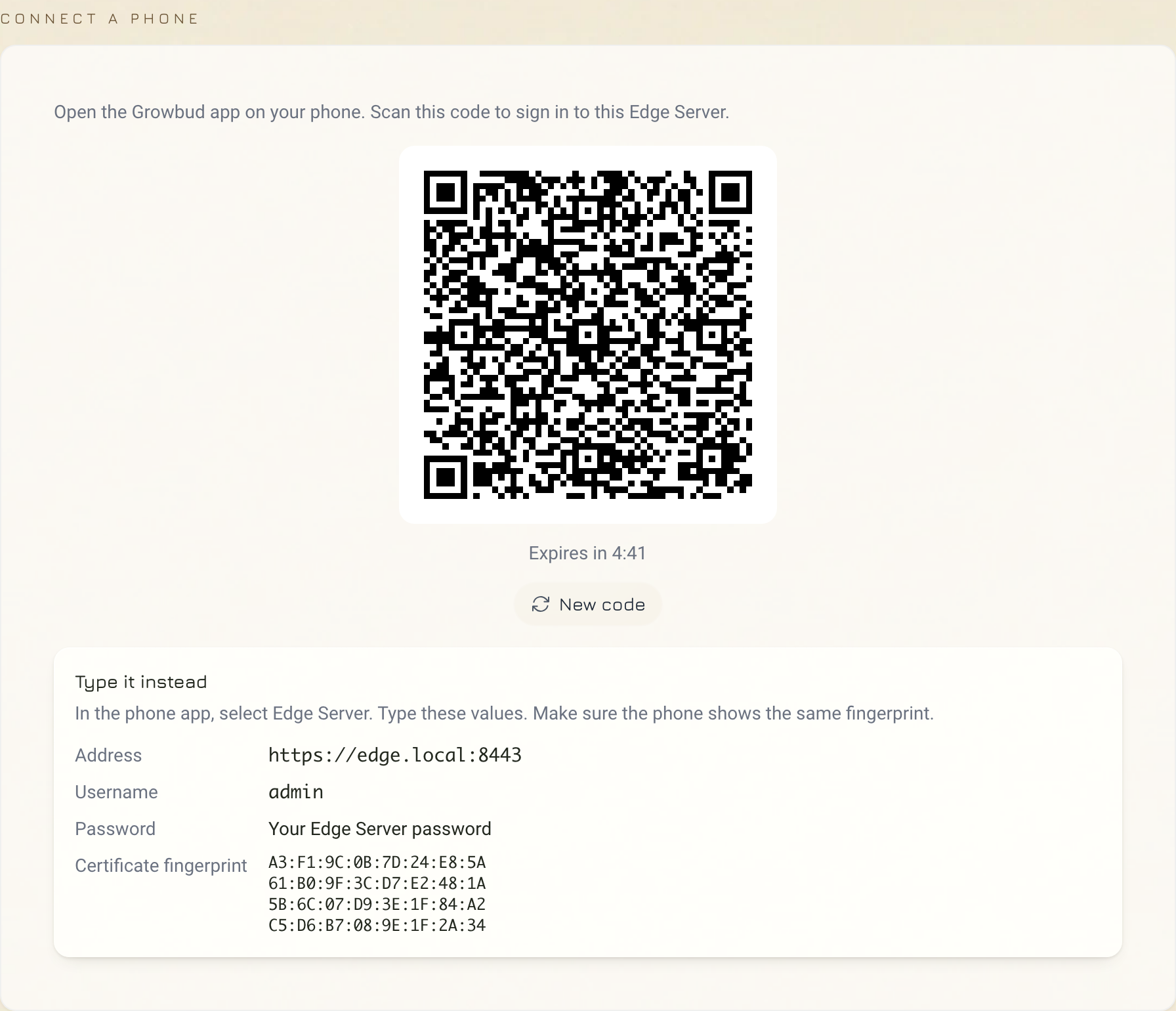
The QR code holds the certificate fingerprint of the Edge Server. The fingerprint is a SHA-256 hash: a long code that only that certificate gives. The phone trusts only that certificate.
Type the address
Use this when the phone cannot scan the code. The Type it instead part of the Connect a phone card shows the address, the user name and the certificate fingerprint.
- On the phone, open the Edge Server screen as in step 4 above.
- In Or enter the address, type your Edge Server address in Address.
- Port shows
8443. Change it only if your Edge Server uses a different port. - Select Connect.
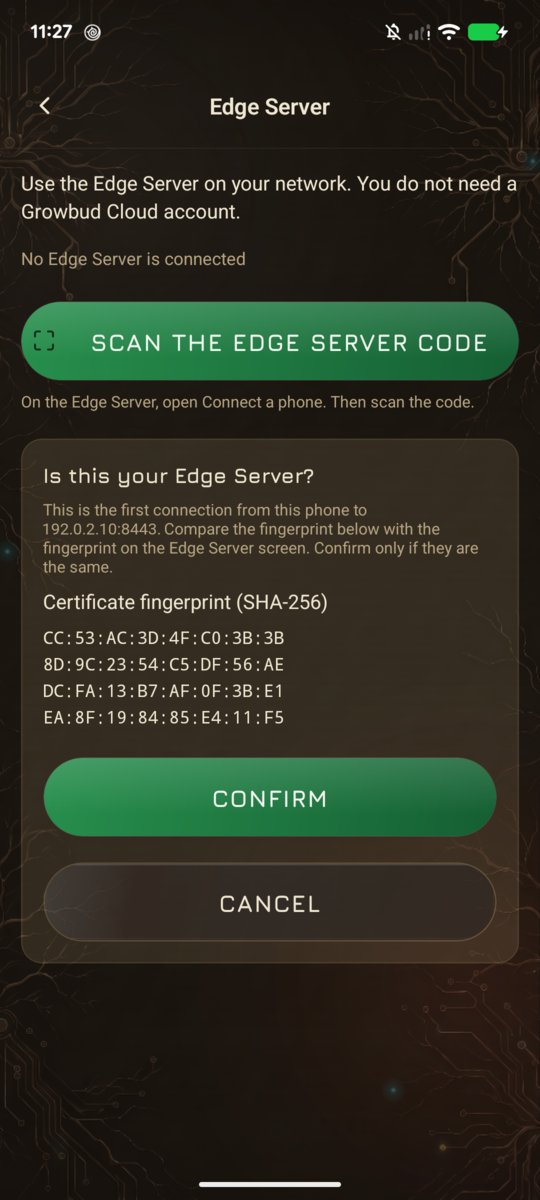
- The phone shows Is this your Edge Server? and a certificate fingerprint. Compare it with the fingerprint on the Connect a phone card.
- If the two fingerprints are the same, select Confirm. If they are different, select Cancel.
- In Sign in, type your Edge Server user name and password.
- Select Sign in.
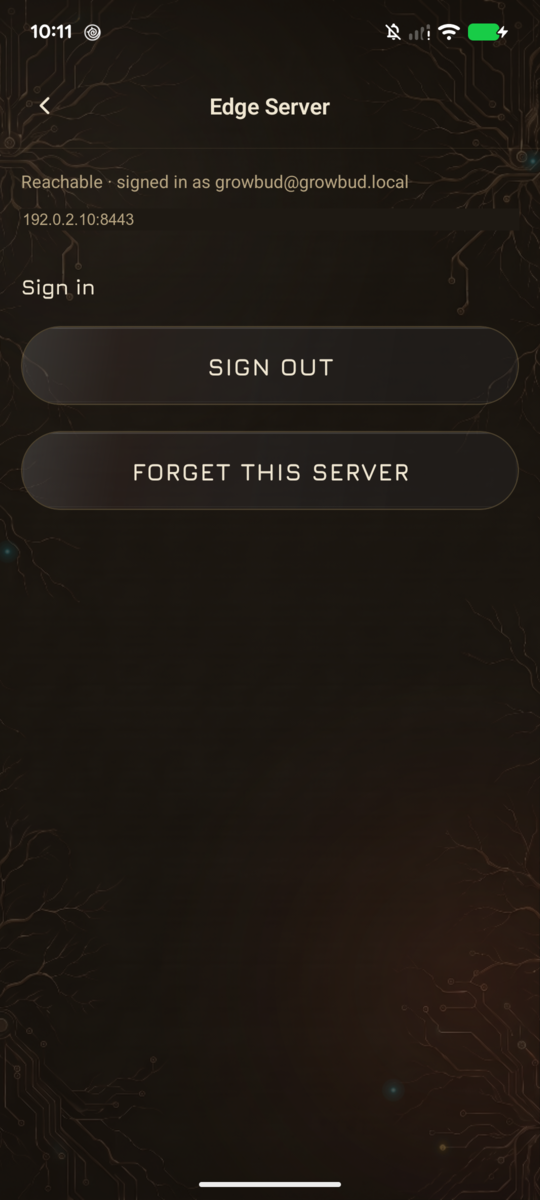
If the Edge Server gets a new certificate, for example after an IP address change, connect each phone again.
Add a device
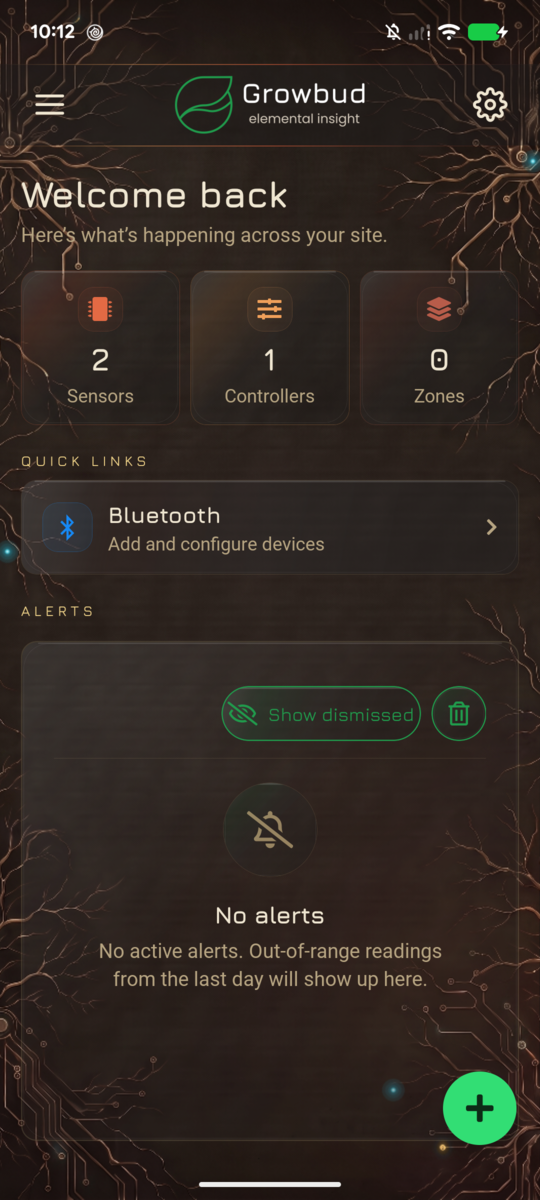
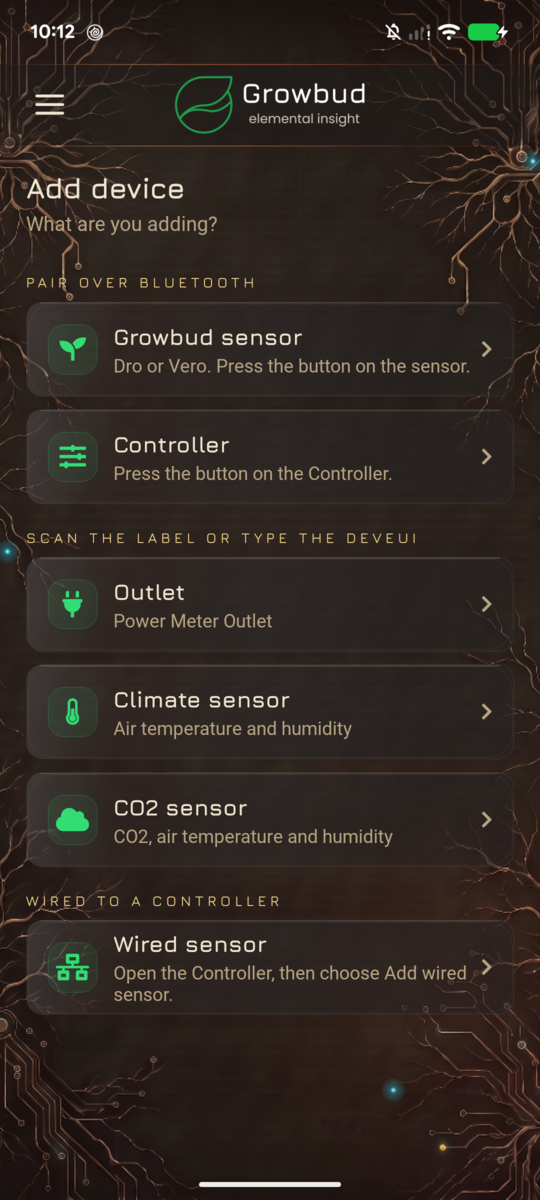
Open the menu, then Add device. Select what you add:
| Choice | How you add it |
|---|---|
| Growbud sensor | Dro or Vero. Press the button on the sensor. The phone links it over Bluetooth. |
| Controller | Press the button on the Controller. See Controllers. |
| Outlet | A Power Meter Outlet. Scan the label or type the DevEUI. The DevEUI is the device ID on the label. |
| Climate sensor | Air temperature and humidity. Scan the label or type the DevEUI. |
| CO2 sensor | CO2, air temperature and humidity. Scan the label or type the DevEUI. |
| Wired sensor | A Modbus device wired to a Controller. Open the Controller, then select Add wired sensor. See Configure Modbus devices. |
The pairing window
The pairing window is the short time after you press the button on a device. In this time the device advertises over Bluetooth and accepts a link.
For a sensor or a Controller, the app shows Link a device and Press the button on your sensor or controller.
- Press the button on the device one time.
- Wait for the app to list the device.
- Select the device.
- Select Link sensor or Link Controller.
If the list is empty, press the button again. Make sure that the LED blinks. If the app says that the pairing window closed, press the button and try again.
What Linked means for a sensor
The sensor sends its readings over LoRaWAN, a long-range, low-power radio network. A gateway receives the radio signal and sends the readings to the Edge Server.
Linked means that three things happened:
- The phone read the LoRaWAN identity of the sensor over Bluetooth.
- The Edge Server put the sensor in your account and registered it on its own LoRaWAN network. The sensor got new keys.
- The sensor took the keys. From now on, its readings go to the Edge Server. A sensor that was on a different network leaves that network.
The Edge Server needs a LoRaWAN gateway that sends to it. See Flash the indoor gateway SD card.
A sensor with firmware older than 5.0.0 cannot report its LoRaWAN identity. The app links it over Bluetooth only and tells you so. The sensor then sends its readings over Bluetooth when the phone syncs.
To use LoRaWAN, the sensor needs firmware 5.0.0 or later. A new Edge Server holds no sensor firmware release, so you cannot update the sensor from the Edge Server. Do these steps:
- Sign in to Growbud Cloud on the phone.
- Update the sensor firmware to 5.0.0 or later.
- Sign in to the Edge Server again.
- Link the sensor again.
If the link fails
| Message | What to do |
|---|---|
| This sensor belongs to another account on this Edge Server. | Ask the person who has the sensor to remove it. Then link it again. |
| Sign in to the Edge Server again, then link the sensor. | Your session ended. Sign in again. |
| Update the Edge Server, then link the sensor. | The Edge Server is too old to link sensors. Update it. See Upgrade the Edge Server. |
| The Edge Server could not register the sensor. Try again. | Link the sensor again. |
| The sensor could not be added to your account. Try again. | Keep the phone next to the sensor. Link it again. |
| The sensor did not answer. Keep the phone next to it and try again. | Keep the phone next to the sensor. Link it again. |
| The sensor did not take its new key. Keep the phone next to it and link it again. | Keep the phone next to the sensor. Link it again. |
| The sensor is on the Edge Server but not yet in your account. Try again. | Keep the phone next to the sensor. Link it again. |
Update a sensor's firmware
A new Edge Server holds no sensor firmware release, so the Update button does not show. To update a sensor, use Growbud Cloud. See Link a sensor and update its firmware.
When the Edge Server holds a sensor release, do these steps:
- Open the menu, then Bluetooth.
- On the Scan tab, wait for the sensor to show in Nearby devices.
- Select the settings icon of the sensor.
- Go to the Firmware card. It shows Firmware is up to date or Version X is available.
- If a new version is available, select Update.
- Keep the phone near the sensor until the app says that the update is done.
Controller firmware updates need Growbud Cloud.
Controllers
The phone can link a Controller to an Edge Server with no Growbud Cloud. This needs Edge Server, mobile app and Controller firmware 5.4.2 or later. See Link a Controller.
To move a Controller from Growbud Cloud instead, use the desktop app. Open Settings, then Edge Server, then Move devices. See Get the Edge Server.
The Controller must use the Edge Server's LoRaWAN network, not Sidewalk. Link one phone at a time. The pairing window closes after the first phone links.
- Press the button on the Controller. Its pairing window opens.
- In the mobile app, signed in to the Edge Server, link the Controller as in The pairing window.
The Edge Server does not ask Growbud Cloud. The Edge Server trusts the phone that links in the pairing window. A Controller that you link this way stays on the Edge Server. It cannot move to Growbud Cloud later. Back to Growbud Cloud in the desktop app refuses it. To use it with Growbud Cloud, do a factory reset on the Controller first. A factory reset is the only way back.
What the phone cannot do on an Edge Server
These need Growbud Cloud:
- Genie reports.
- Site surveys.
- Controller firmware updates.
- Push alerts to the phone. The Alerts page still shows the alerts that the Edge Server records.
If you sign in to Growbud Cloud on the same phone, the app uses Growbud Cloud. The Edge Server stays available for Controllers.
Next
- Flash the indoor gateway SD card: give the sensors a LoRaWAN gateway that sends to the Edge Server.
- Get the Edge Server: accounts, tokens and moving devices.
- Configure Modbus devices: add wired sensors to a Controller.