
Link a Controller
Needs Edge Server, app and Controller firmware 5.4.2 or later.
You can link a Controller to your Edge Server with no Growbud Cloud account. You press the link button on the Controller. Then a phone or a computer links to it over Bluetooth. The Edge Server keeps the Controller in your account. Nothing goes to Growbud Cloud.
Before you start
You need:
- Edge Server 5.4.2 or later. See Get the Edge Server.
- Your Edge Server account.
- Mobile app or desktop app 5.4.2 or later, signed in to your Edge Server. See Link your phone to an Edge Server.
- A Controller with firmware 5.4.2 or later.
- Physical access to the Controller. Stay within Bluetooth range of it.
The Controller must not use a radio mode that only Growbud Cloud serves. A new Controller and a Controller on LoRaWAN are correct. See The radio rule.
How the link works
A bond is the Bluetooth key that the Controller and a phone or computer share.
The link button opens the link window for two minutes. While the window is open, one phone or computer can make a bond with the Controller. The window closes when the Controller stores the first bond.
Each Controller has a factory key. Growbud Cloud holds this key. On a Controller linked through Growbud Cloud, the bond alone does not authorize anything. Growbud Cloud signs a proof with the factory key. The app sends that proof to the Controller.
On an Edge Server, no cloud signs a proof. So the Controller trusts the bond that its link window let form. This bond is a window bond. The Controller keeps it after a restart. The app then links the Controller to your account on the Edge Server. The app calls no Growbud Cloud service.
A window bond can do all that a proven bond can, with one exception. It cannot change the Controller to a radio mode that only Growbud Cloud serves.
Link from the mobile app
- Sign in to your Edge Server in the mobile app.
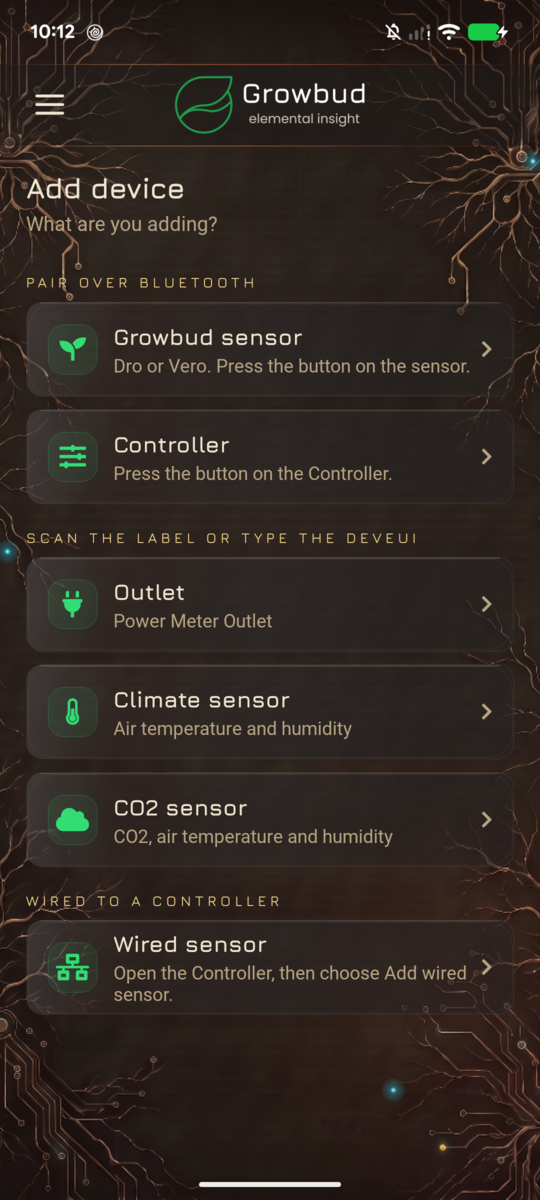
- Open the menu, then select Add device.
- Select Controller.
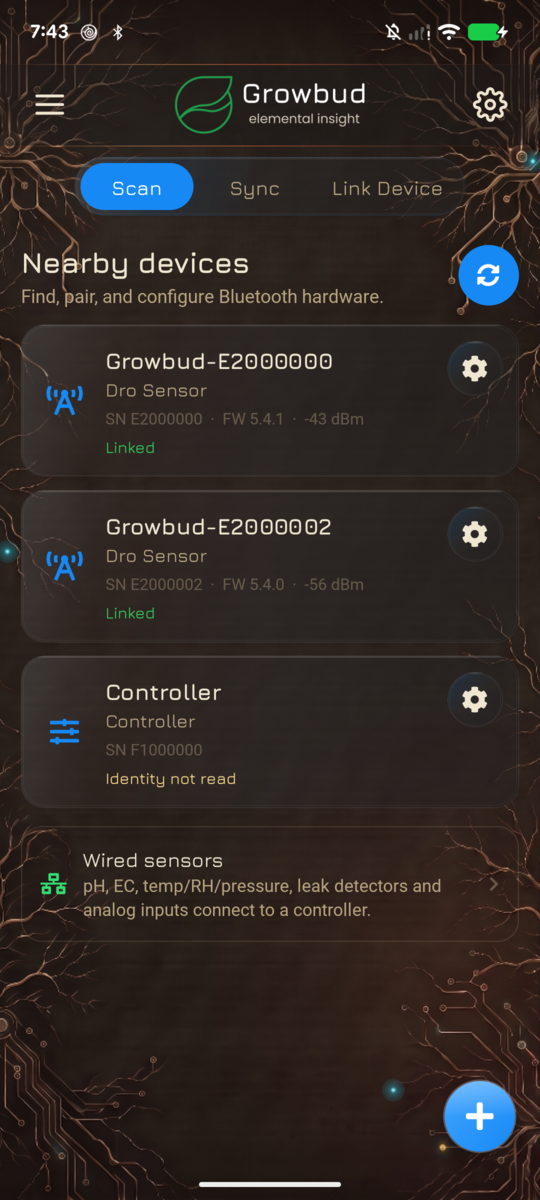
- Go to the Controller. Press the link button until the LED blinks. Then release it.
- In the app, select the Controller in the list.
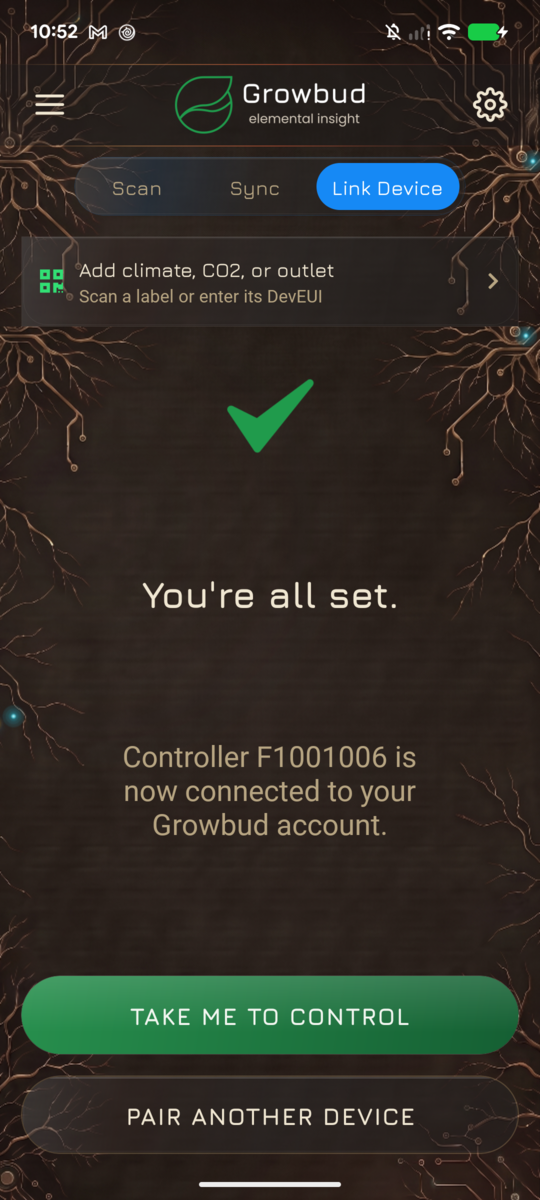
- Wait until the app shows that the Controller is linked.
Do not hold the link button for 8 seconds or more. A long hold restarts the Controller in update mode and stops Modbus for a time.
Link from the desktop app
Use this procedure on the Edge Server computer, or on a computer near the Controller. The computer must have Bluetooth.
- Sign in to your Edge Server in the desktop app.
- Select Control.
- Select +, then select Controller. If Control shows No controllers linked, select Link device.
- Go to the Controller. Press the link button until the LED blinks. Then release it.
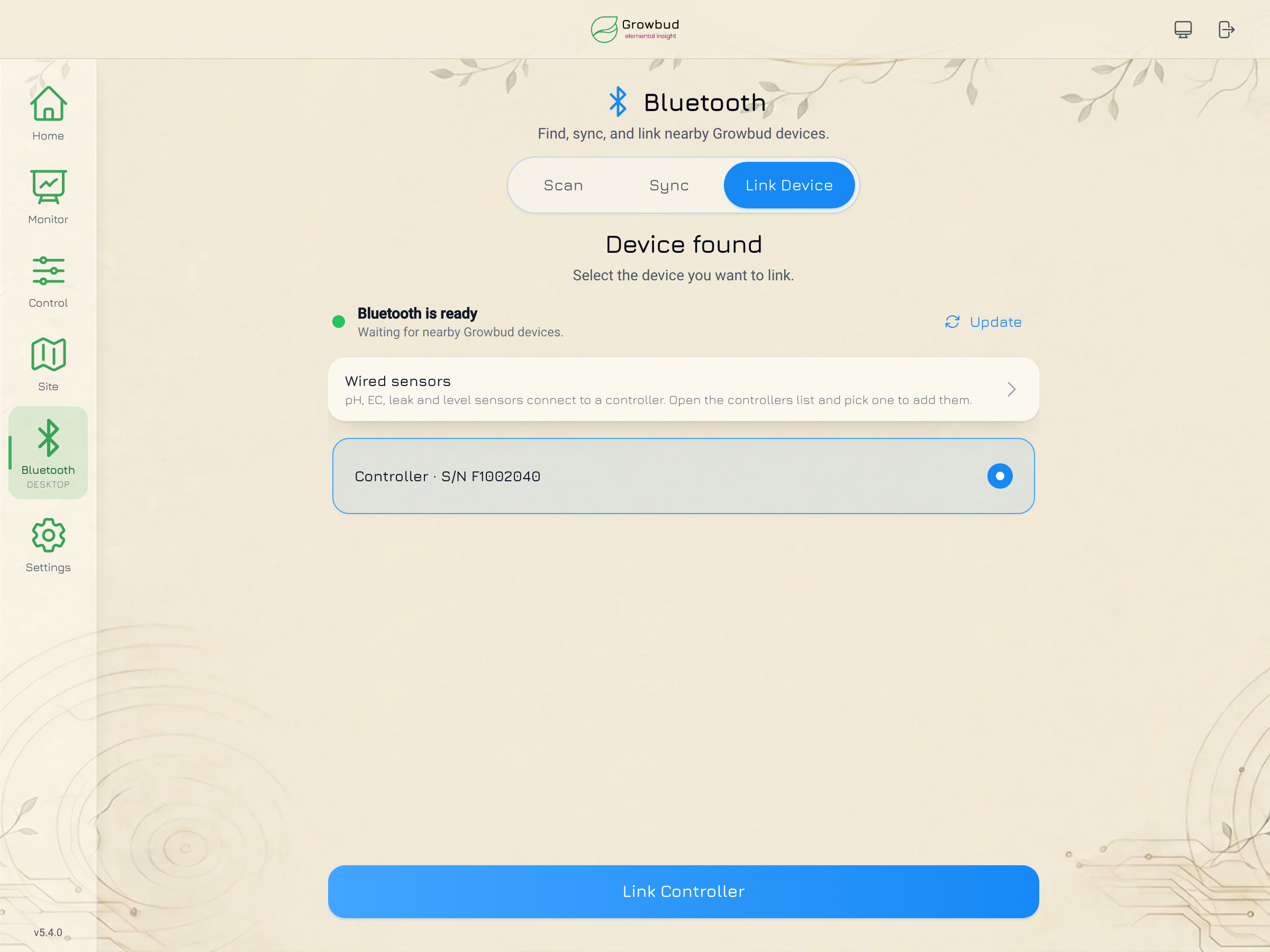
- In the desktop app, select the Controller in the list.
- Select Link Controller.
You can also open Bluetooth, then select Link Device.
If the link fails
| The app shows | Do this |
|---|---|
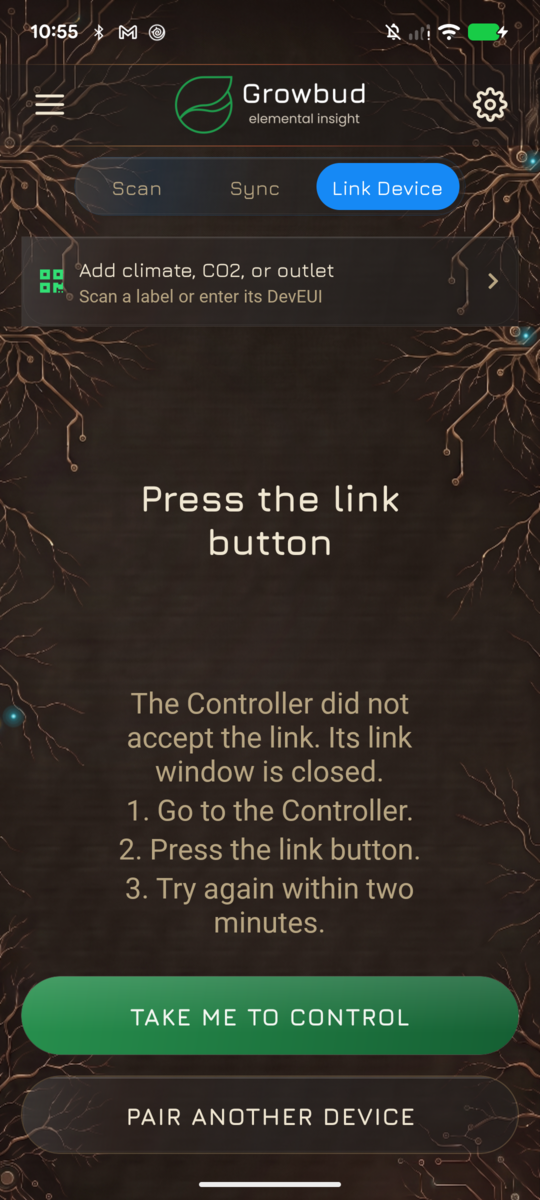
| Press the link button. The Controller did not accept the link. Its link window is closed. | Go to the Controller. Press the link button. Try again within two minutes. |
| This Controller is linked to another account. Press its pairing button and try again, or ask the owner to unlink it. | Another account on this Edge Server has the Controller. Ask that person to unlink it. Then link it again. |
| The list is empty. | Press the link button again. Make sure that the LED blinks. Scan again. |
| Unable to pair this device | The Edge Server, the app or the Controller firmware is too old. Update it to the version in Before you start. |
On an Edge Server, the link button does not move a Controller from another account. Only the other account can unlink it.
Add another phone or computer
Each new phone or computer needs its own bond. Press the link button again for each one. One press lets one bond form.
A phone or computer that is linked already does not need a new bond. It connects with no cloud. If Bluetooth visibility is Button only, press the link button before you connect.
Set up the outputs
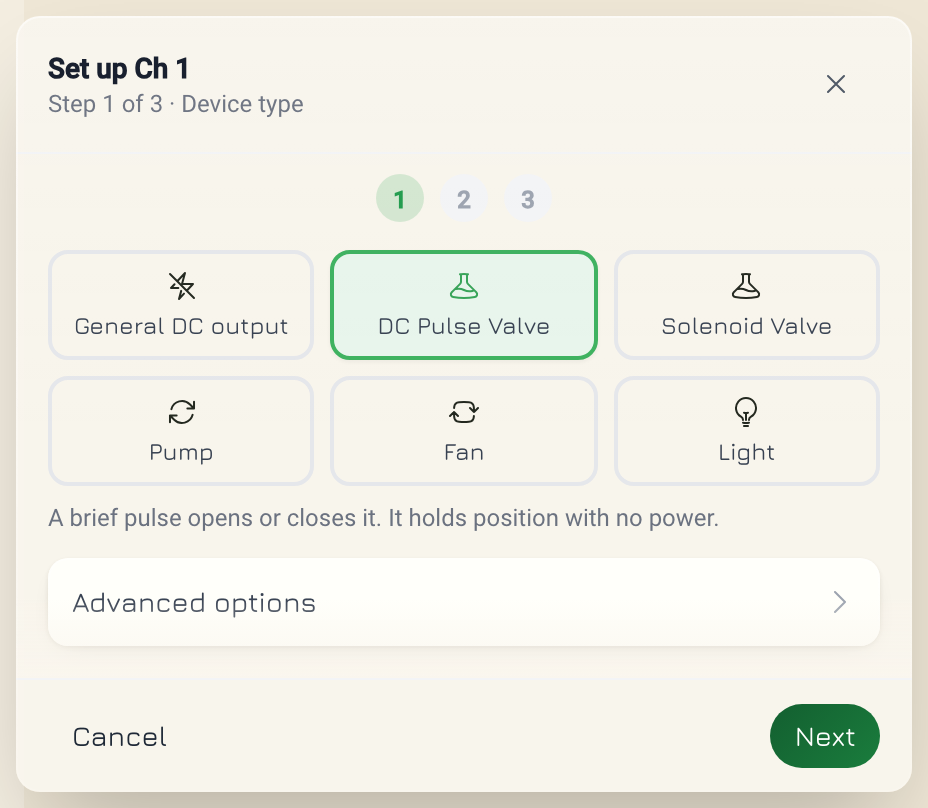
An output does nothing until you set the device type.
- Open the Controller.
- Open the Outputs tab.
- Open an output.
- Select the device type, for example Solenoid valve or Pump.
The app uses Bluetooth when the Controller is in range. If it is not, the app sends the setup over LoRaWAN.
| Link | When the app uses it | What to know |
|---|---|---|
| Bluetooth | You are near the Controller, with the mobile app or the desktop app. | The window bond allows output setup, schedules and LoRaWAN settings. |
| LoRaWAN | The Controller is not in Bluetooth range. | The Controller must be on the Edge Server's LoRaWAN network. A gateway must send to the Edge Server. LoRaWAN carries small frames. A large change takes longer than over Bluetooth. |
For a gateway that sends to the Edge Server, see Flash the indoor gateway SD card.
Switch outputs over the wired link. The wired link is the RS-485 link between the Controller and the Edge Server. The Edge Server sends output commands over the wired link when it saw the Controller on that link in the last five minutes. See Controllers.
The Controller stays on this Edge Server
A Controller that you link with a window bond stays on this Edge Server. It cannot move to Growbud Cloud. The Edge Server does not hold the Controller's factory key. Growbud Cloud needs that key to accept a Controller.
The Edge Server records how it got each Controller:
| How the Controller came to the Edge Server | Can it move back to Growbud Cloud? |
|---|---|
| You linked it on the Edge Server with a window bond. | No. |
| You moved it from Growbud Cloud with Move devices. | Yes. Growbud Cloud kept its key. |
To try to move a Controller back, use the desktop app. The mobile app and the web app cannot move devices.
- In the desktop app, open Settings.
- In Move devices, select Back to Growbud Cloud.
The section is named Growbud Cloud link on builds that link the Edge Server to Growbud Cloud.
For a window-bond Controller, Back to Growbud Cloud refuses with this message:
This Controller was linked on this Edge Server without its factory key. It cannot move to Growbud Cloud.
A Growbud Cloud account that tries to link the same Controller sees a message with the same meaning.
A factory reset of the Controller removes all its bonds, the window bond too. Move devices still refuses the Controller after a reset. To put it on Growbud Cloud, link the Controller from the Growbud Cloud app.
Plan the move before you link. If the Controller must go to Growbud Cloud later, link it to Growbud Cloud first. Then move it to the Edge Server with Move devices.
The radio rule
The window bond works in every radio mode except the one that only Growbud Cloud serves. In that mode, the Controller does not keep a window bond. The link fails with Press the link button, even inside the link window.
A window-bond link cannot change the Controller to a radio mode that only Growbud Cloud serves. The Controller refuses that one command. It runs every other command.
If a Controller changes to such a mode through a link that Growbud Cloud authorized, the Controller restarts. It then removes its window bonds.
Next
- Controllers: switch outputs and write Modbus points through the Edge Server API.
- Configure Modbus devices: set the Controller's RS-485 port and add devices.
- Get the Edge Server: accounts, tokens and moving devices.