
Flash the indoor gateway SD card
Needs Edge Server 5.4.2 or later and desktop app 5.4.3 or later.
A LoRaWAN gateway sends every packet it hears to one address. For an Edge Server, that is UDP port 1700 on the Edge Server's LAN address. The Growbud desktop app writes the gateway's SD card with the gateway OS and that address.
You need
- The Growbud desktop app on macOS or Linux, signed in to the Edge Server. The Edge Server computer itself can do this.
- The gateway's SD card and an SD card reader.
- The gateway EUI from the label on the gateway: 16 characters,
0to9andAtoF. - The Edge Server at a fixed LAN address. See The address on the SD card is the only address the gateway knows.
1. Open the Gateway SD card panel
- Put the SD card in the reader.
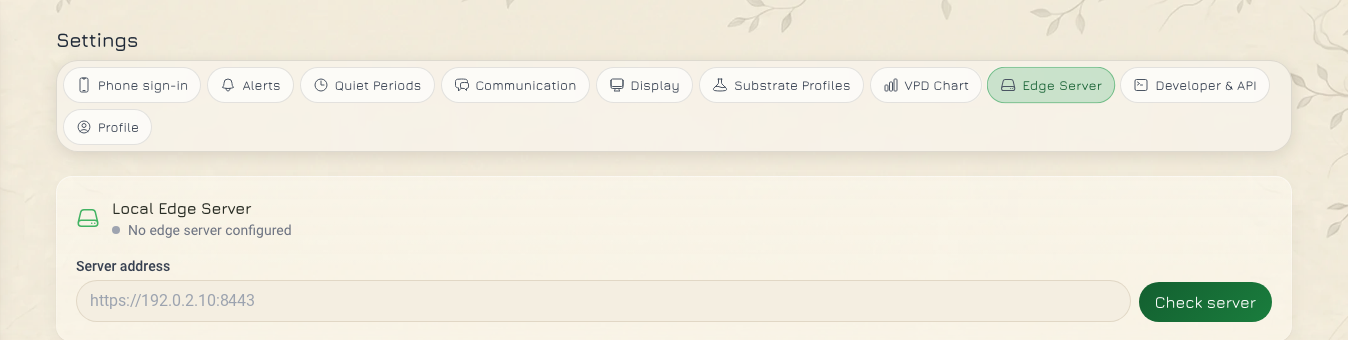
- Open Settings, then Edge Server.
- Find the Gateway SD card panel. It shows only in the desktop app, and only when the app is signed in to an Edge Server.
2. Fill in the panel
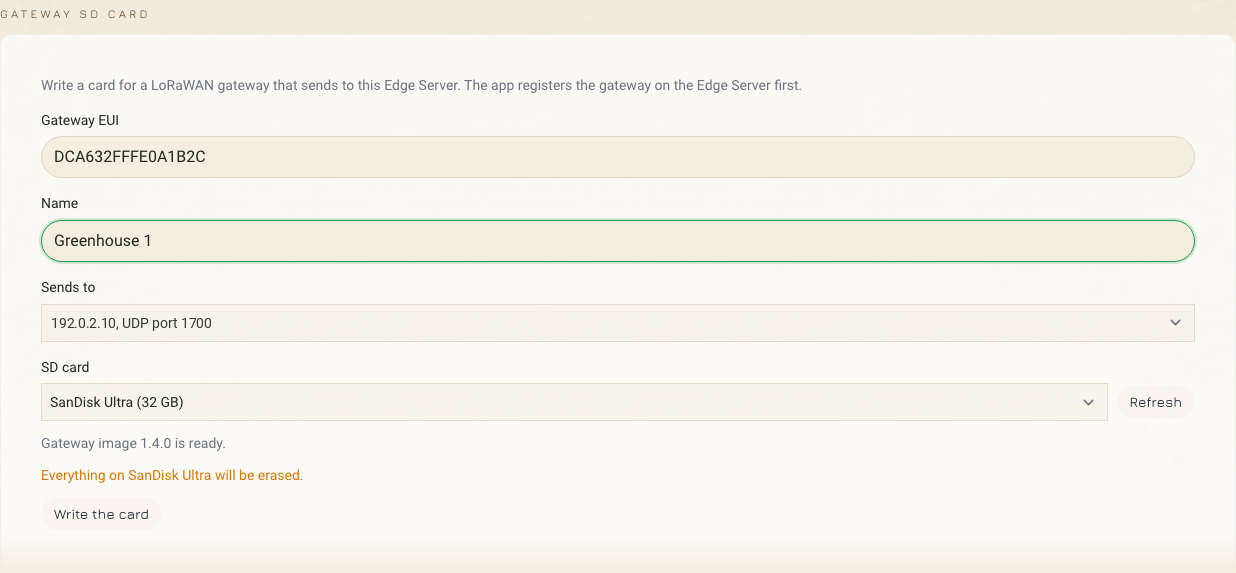
| Field | What to enter |
|---|---|
| Gateway EUI | Select the gateway if the Edge Server knows it. For a new gateway, type the EUI from its label. |
| Name | A name for a new gateway, for example Greenhouse 1. |
| Sends to | The Edge Server address the gateway must reach, with UDP port 1700. On the Edge Server computer, this is that computer's LAN address. From another computer, it is the Edge Server's address. The app never offers localhost or 127.0.0.1. |
| SD card | The SD card in the reader. If the list is empty, select Refresh. |
The app downloads the gateway OS image one time and keeps it. Wait until the panel shows Gateway image ... is ready.
The app writes the US915 channel plan, sub-band 1. Growbud sensors and Controllers use that sub-band.
3. Write the SD card
- Select Write the card. The app registers the gateway on the Edge Server. The Edge Server accepts packets only from gateways registered on it.
- The app asks you to erase the SD card. Check the disk name and size.
- Select Erase and Write.
- On a Mac, type your administrator password.
- Wait. The app writes the image, then writes a settings file,
growbud-gateway.json, to the boot partition. The panel shows each step while it runs. - When the panel shows The card is ejected, remove the SD card. If the panel shows Remove the card, the app could not eject the SD card. Remove it yourself.
If you cancel at step 2 or 4, the gateway stays registered on the Edge Server. This does no harm. Select Write the card again when you are ready.
4. First boot
- Put the SD card in the gateway.
- Connect the gateway to your network with an Ethernet cable.
- Power the gateway on.
At boot, the gateway:
- Reads the settings file.
- Checks the file, and checks that the EUI in it is its own.
- Sets its channel plan.
- Sends the packets it hears to the address on the SD card.
The first boot takes a few minutes. Then readings from your sensors arrive on the Edge Server.
If a check fails, for example the EUI does not match, the gateway applies nothing. It renames the file to growbud-gateway.rejected.json on the boot partition and writes the reason next to it in growbud-gateway.rejected.txt.
The address on the SD card is the only address the gateway knows
The settings file carries the address you chose under Sends to. In this example, 192.0.2.10 stands for your Edge Server address:
{
  "version": 1,
  "gatewayEui": "dca632fffe0a1b2c",
  "name": "Greenhouse 1",
  "region": "us915_0",
  "target": { "kind": "edge", "udpHost": "192.0.2.10", "udpPort": 1700 },
  "createdAt": "2026-11-08T12:00:00.000Z"
}
The gateway sends to that address and nothing else. If your router gives the Edge Server a new address, the gateway does not find it, and the sensors go quiet.
Reserve the Edge Server's address in your router: in the router's DHCP settings, bind the address to the Edge Server computer's MAC address. If the address must change, write the SD card again with the new one.
To let a gateway find a moved Edge Server, see How a gateway finds the Edge Server.
If something does not work
| What you see | What to do |
|---|---|
| No SD card found | Remove the SD card, put it back, then select Refresh. On Linux, if you connected the reader before you installed the app, disconnect the reader and connect it again. |
| Cannot download the gateway image, or The gateway image did not download | Select Try again. The app needs internet access for this step. |
| No Edge Server address | Sign in to the Edge Server again. |
| No readings from the sensors | Check that the gateway has a network link and that the address on the SD card is the Edge Server's current address. |
| Still no readings, and you wrote the SD card some other way | The Edge Server accepts packets only from gateways registered on it. Write the SD card again from the Gateway SD card panel. The app registers the gateway. |
growbud-gateway.rejected.txt on the SD card | Read the reason in the file. For an EUI mismatch, write the SD card again with the EUI from this gateway's label. |
Next
- Link your phone to an Edge Server: add the sensors that will use the gateway.
- How a gateway finds the Edge Server: find a moved Edge Server without a new SD card.
- Get the Edge Server: install and upgrade.