
Link a sensor and update its firmware
Needs Edge Server 5.4.2 or later and mobile app 5.4.2 or later.
You link a Growbud sensor (Dro or Vero) to your Edge Server with the mobile app, over Bluetooth. No Growbud Cloud account is used. The Edge Server registers the sensor on its own LoRaWAN network. From then on, the sensor's readings go to the Edge Server.
Before you start
You need:
- The mobile app, signed in to your Edge Server account. See Link your phone to an Edge Server.
- The sensor, near the phone.
- A LoRaWAN gateway that sends to your Edge Server. See Flash the indoor gateway SD card. Without a gateway, the sensor is linked but its LoRaWAN readings do not reach the Edge Server.
If the phone is also signed in to Growbud Cloud, the app links the sensor to Growbud Cloud, not to the Edge Server. Sign out of Growbud Cloud first.
Link the sensor
- In the mobile app, open the menu.
- Select Add device.
- Select Growbud sensor.
- Press the button on the sensor once. The sensor opens its pairing window for the phone.
- In the Devices found list, select the sensor.
- Select Link sensor.
- Keep the phone next to the sensor until the app shows You're all set.
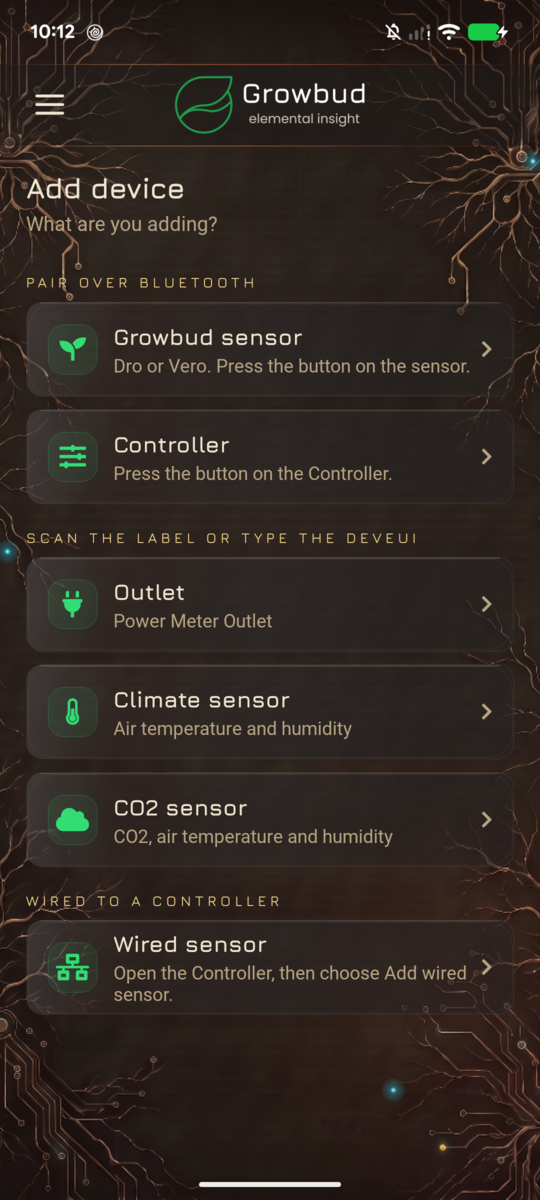
If the list is empty, press the sensor button again. If the app says the pairing window closed, press the button and try again.
What Linked means
The phone is next to the sensor, so the Edge Server lets it link the sensor. The Edge Server does not ask Growbud Cloud.
When you select Link sensor, these steps run in this order:
- The phone reads the sensor's DevEUI over Bluetooth. The DevEUI is the sensor's factory LoRaWAN ID.
- The Edge Server checks your session.
- The Edge Server adds the sensor to your account. If another account on this Edge Server holds the sensor, the Edge Server stops here. The sensor keeps its keys.
- The Edge Server registers the sensor on its own LoRaWAN network. It makes a new network key for the sensor.
- The phone writes the new key to the sensor over Bluetooth. It also sets the radio channels that the Edge Server's gateway uses (US915 sub-band 1).
- The sensor restarts and joins the Edge Server's network.
Each link makes a new key. A sensor that was on another network, for example Growbud Cloud, leaves that network. Its first LoRaWAN reading on the Edge Server can take a few minutes.
You can link the same sensor again at any time. Do this when a link stops part way.
Firmware 5.0.0 and the DevEUI read
A sensor sends its DevEUI over Bluetooth only on firmware 5.0.0 or later. Before the link starts, the app reads the firmware version that the sensor sends over Bluetooth.
| Sensor firmware | What the link does |
|---|---|
| 5.0.0 or later | All six steps above. The sensor uses the Edge Server's LoRaWAN network. |
| Older than 5.0.0 | Bluetooth only. The app adds the sensor to your account. It does not read the DevEUI, register the sensor or change its keys. |
| Not known | The app tries the full link. |
A sensor linked over Bluetooth only keeps its old LoRaWAN settings. Its readings reach the Edge Server only when the phone syncs it over Bluetooth. The success screen tells you so: It reports over Bluetooth for now. Update its firmware to 5.0.0 or later in its settings, then link it again to use LoRaWAN.
To move that sensor to LoRaWAN
A new Edge Server holds no sensor firmware release, so it cannot update the sensor. See How a sensor release reaches the Edge Server. Update the sensor through Growbud Cloud. Sensor settings open only for a sensor linked to the account that the phone is signed in to.
- In the mobile app, sign out of your Edge Server account.
- Sign in to Growbud Cloud.
- Link the sensor to your Growbud Cloud account.
- Update the sensor's firmware to 5.0.0 or later. See Update a sensor's firmware.
- Sign out of Growbud Cloud.
- Sign in to your Edge Server account.
- Link the sensor again. See Link the sensor.
The sensor needs firmware 3.5.0 or later for step 4. The phone cannot update an older sensor, so that sensor cannot move to LoRaWAN this way.
Update a sensor's firmware
- On Home, open the sensor.
- Find the firmware version. It reads FW: and the version the sensor runs.
- If an Update button shows next to it, select Update.
- Keep the phone next to the sensor until the app says the update is done.
The app shows Update only when all of these are true:
- The app found a sensor release.
- That release is newer than the sensor's firmware.
- The sensor runs firmware 3.5.0 or later.
- The sensor is in Bluetooth range of the phone.
Up to date shows when one of these is false. It does not always mean the sensor runs the newest firmware. On an Edge Server with no sensor release, the app finds no release, so Up to date always shows.
The app checks for a release when the screen opens, then every 5 minutes. Controller firmware updates need Growbud Cloud. The phone cannot update a Controller from an Edge Server.
How a sensor release reaches the Edge Server
The Edge Server keeps sensor firmware in the firmware table of its database. The app reads two rows:
Row id | Holds | Used for |
|---|---|---|
metadata | version, and metadata.sha256 | The version the Update button compares. |
latest | The signed image as base64 text in metadata.image, with metadata.sha256 and metadata.size | The image the phone sends to the sensor. |
The app ignores a row when metadata.product is not sensor. It refuses an image whose length is not metadata.size. The sensor's bootloader checks the image signature.
Nothing loads a sensor release into this table:
- The Edge Server installer and upgrade do not load one.
- The Growbud Cloud link does not sync one.
- A new Edge Server has only a placeholder
latestrow with no image, and nometadatarow.
So the app finds no release, and no Update button shows. To update a sensor, use Growbud Cloud. See To move that sensor to LoRaWAN.
Messages
| The app shows | What to do |
|---|---|
| The sensor pairing window closed. Press its button and try again. | Press the sensor button, then select the sensor again. |
| The sensor did not answer. Keep the phone next to it and try again. | Move the phone next to the sensor. Link again. |
| The sensor could not be added to your account. Try again. | The Bluetooth-only link for a sensor older than 5.0.0 failed. Link again. |
| This sensor belongs to another account on this Edge Server. | Ask that person to remove the sensor. Link again. |
| Sign in to the Edge Server again, then link the sensor. | Your session expired. Sign in, then link again. |
| Update the Edge Server, then link the sensor. | The Edge Server is too old to link sensors. Update the Edge Server. See Upgrade the Edge Server. |
| The Edge Server could not register the sensor. Try again. | Link again. If it fails again, check these causes: the Edge Server is not running, the Edge Server has no LoRaWAN network set up, or your account is not on this Edge Server. |
| The sensor did not take its new key. Keep the phone next to it and link it again. | Link again. The Edge Server makes a new key. |
| The sensor is on the Edge Server but not yet in your account. Try again. | Link again. |
The desktop app
The desktop app does not link a sensor to an Edge Server. Use the mobile app.
The desktop app has a sensor link in Bluetooth, then Link Device. Use it only when the desktop app is signed in to Growbud Cloud. It links the sensor to your Growbud Cloud account. On an Edge Server computer, it shows This computer cannot link sensors to this Edge Server yet.
Next
- Flash the indoor gateway SD card: give the sensors a LoRaWAN gateway that sends to the Edge Server.
- Link your phone to an Edge Server: sign in and add other devices.