
First boot and accounts
Verified on Edge Server release 5.4.0.
An Edge Server box comes ready to run. This page tells you what is on the box and how to sign in the first time. It also tells you how to keep the address of the box fixed. Browsers, phones and LoRaWAN gateways use that address.
What is on the box
| Item | What it does |
|---|---|
| A Linux computer | Runs the Edge Server. Connect a monitor, a keyboard and a mouse to use it directly. |
| The Edge Server | Runs in Docker from /opt/growbud-edge. It starts when the computer starts. |
| The Growbud desktop app | Signs in to the Edge Server on this computer with no password. Use it to set the administrator password, show the phone sign-in code and update the Edge Server. |
The note Growbud Edge Server.txt | Is on the desktop. It gives the user name and the first password. |
| A local sign-in key | Is in ~/.config/growbud/edge-local-signin.key. Only the desktop user can read it. Anyone who has the key can sign in as the administrator, so do not copy it to another computer. |
The command growbud-edge-reset-admin | Makes a new one-time administrator password. The menu item Reset Edge Server password does the same. |
The command growbud-edge-update | Downloads, verifies and installs a new Edge Server release. |
You do not need a Growbud Cloud account to use the Edge Server.
Ports
Open these ports to your LAN if the computer has a firewall.
| Port | Use |
|---|---|
| 8443/tcp | Web app and APIs (HTTPS) |
| 80/tcp | Redirect to HTTPS |
| 1700/udp | LoRaWAN gateways. Gateways send radio packets to this port (Semtech UDP packet forwarder protocol). |
| 8080/tcp | ChirpStack console, for setup only |
| 502/tcp | Modbus TCP for a PLC or SCADA system (optional) |
First power-up
- Connect the computer to your LAN with an Ethernet cable.
- Start the computer. It gets an address from your router (DHCP).
- Wait for the desktop. The Edge Server starts by itself.
- Open the Growbud desktop app.
- Set a new administrator password. See Set a new administrator password. Do this before you sign in a phone or open the web app from another computer.
The desktop app signs in to the Edge Server on this computer as the administrator. It uses the local sign-in key, so it asks for no password.
After a sign-out, select EDGE on the sign-in screen. Then select Use the Edge Server on this computer.
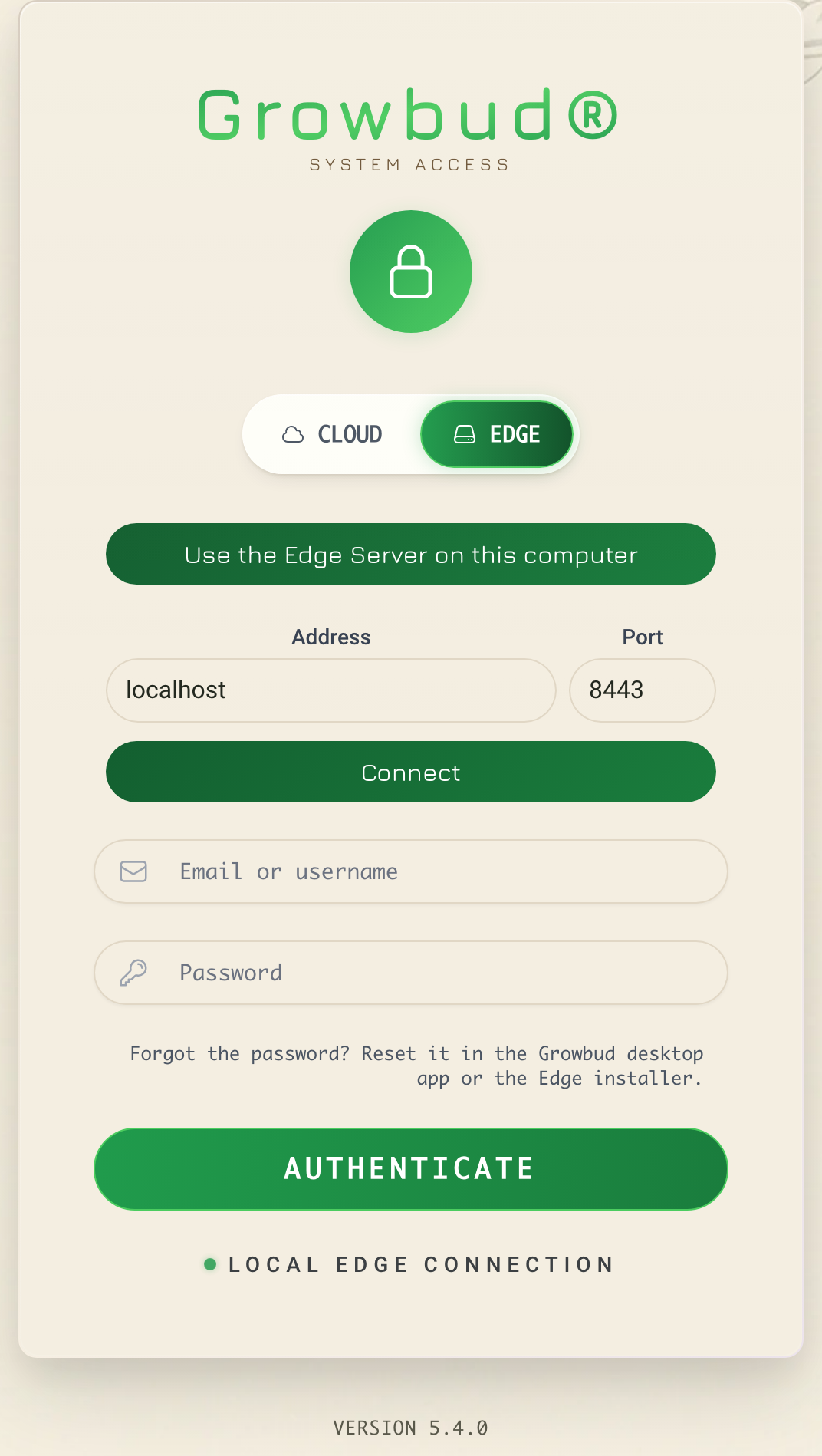
In the desktop app on this computer, the Edge Server address is localhost and the port is 8443.
The administrator account
| Item | Value |
|---|---|
| User name | growbud |
| Sign-in email | growbud@growbud.local |
| First password | growbud |
| Role | Administrator of the organization |
The apps accept the bare user name growbud. Commands need the email form. For example, this command makes an API token. Run it in /opt/growbud-edge:
sudo docker compose exec outlets node /app/edge-outlets.mjs token create --email growbud@growbud.local --name "My script"
On an Edge Server box, the first password is growbud. Everyone who has a box knows it. Set a new password as soon as the desktop app opens.
Other Edge Servers have a different first administrator:
- An Edge Server that the desktop app installed has the user
admin. Its first password is a generated one. The desktop app shows it after the install. - An Edge Server that was installed before release 5.4.0 keeps its old administrator, user
admin.
Sign-up is off. The Edge Server sends no email. An administrator adds the other users.
Set a new administrator password
Do this in the desktop app on the Edge Server computer.
- Open Settings, then Edge Server.
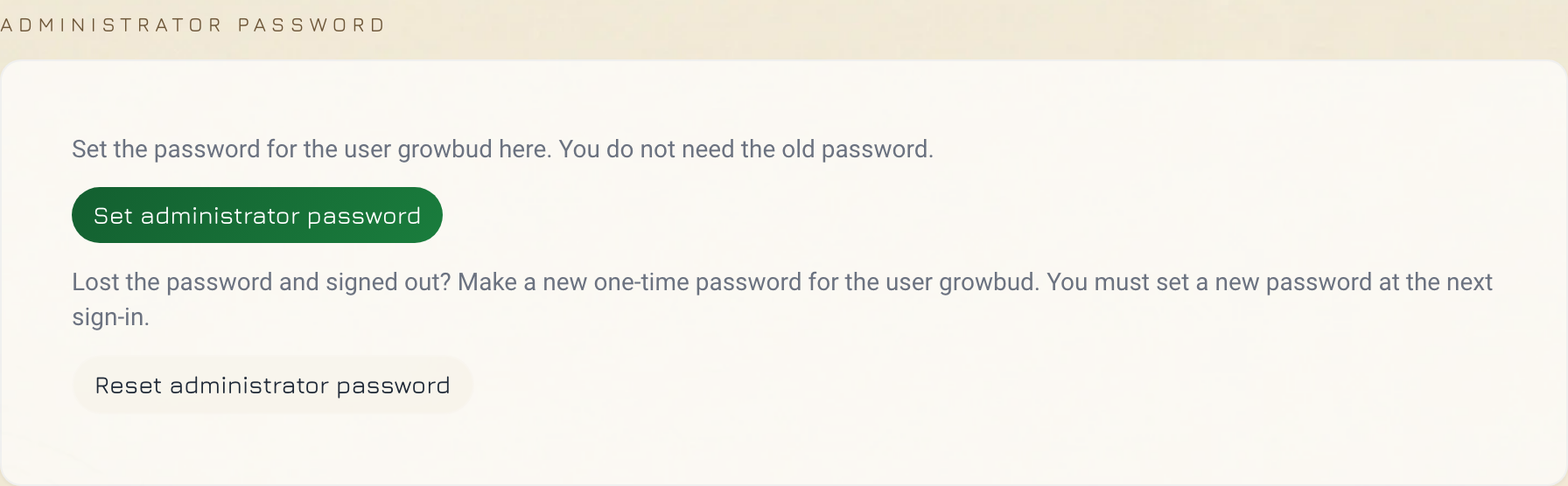
- Find the Administrator password card.
- Select Set administrator password.
- Enter the new password in New password. Use 6 characters or more.
- Enter it again in Confirm new password.
- Select Save password.
You do not need the old password. After this, sign in as growbud with the new password from any other computer or phone.
Delete the note Growbud Edge Server.txt after you set a new password. The installer does not write the note again.
The forced password change
You must change a one-time password at the next sign-in. You get a one-time password when you reset a lost administrator password.
With a one-time password:
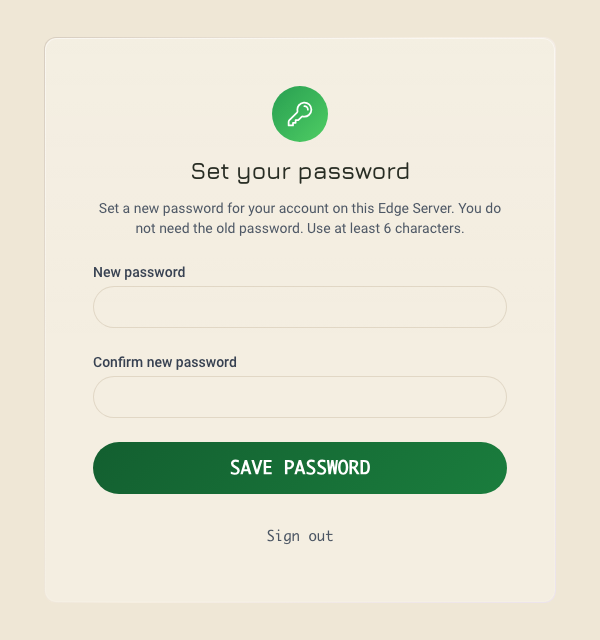
- A browser sign-in opens Set your password before any other screen.
- A phone sign-in opens Change the password on the Edge Server screen of the mobile app.
- The Edge Server refuses the phone sign-in code. The Connect a phone card shows Change the admin password first.
- The Edge Server refuses Move devices. The app shows Change your password first.
The desktop app on the Edge Server computer does not show the Set your password screen, because it signs in with the local key. The account still has the one-time password. Select Change password next to the refusal, or select Set administrator password. Set a new password one time and the refusals stop.
Reset a lost administrator password
Use one of these methods on the Edge Server computer:
- In the desktop app, open Settings, then Edge Server. In Administrator password, select Reset administrator password. Enter the password of the computer when it asks.
- In the applications menu, select Reset Edge Server password.
- In a terminal, run
sudo growbud-edge-reset-admin.
Each method writes a new one-time password to the note Growbud Edge Server.txt on the desktop. It also writes it to /opt/growbud-edge/ADMIN-CREDENTIALS.txt. Only the owner of that file can read it. Sign in with the one-time password, then set a new password.
On an Edge Server that you installed with install.sh or install.ps1 on macOS or Windows, run this command in the install folder:
docker compose run --rm init reset-admin
The command prints the user name as admin. Sign in as growbud with the new password.
This command does not work on an Edge Server that the desktop app installed.
The phone sign-in code
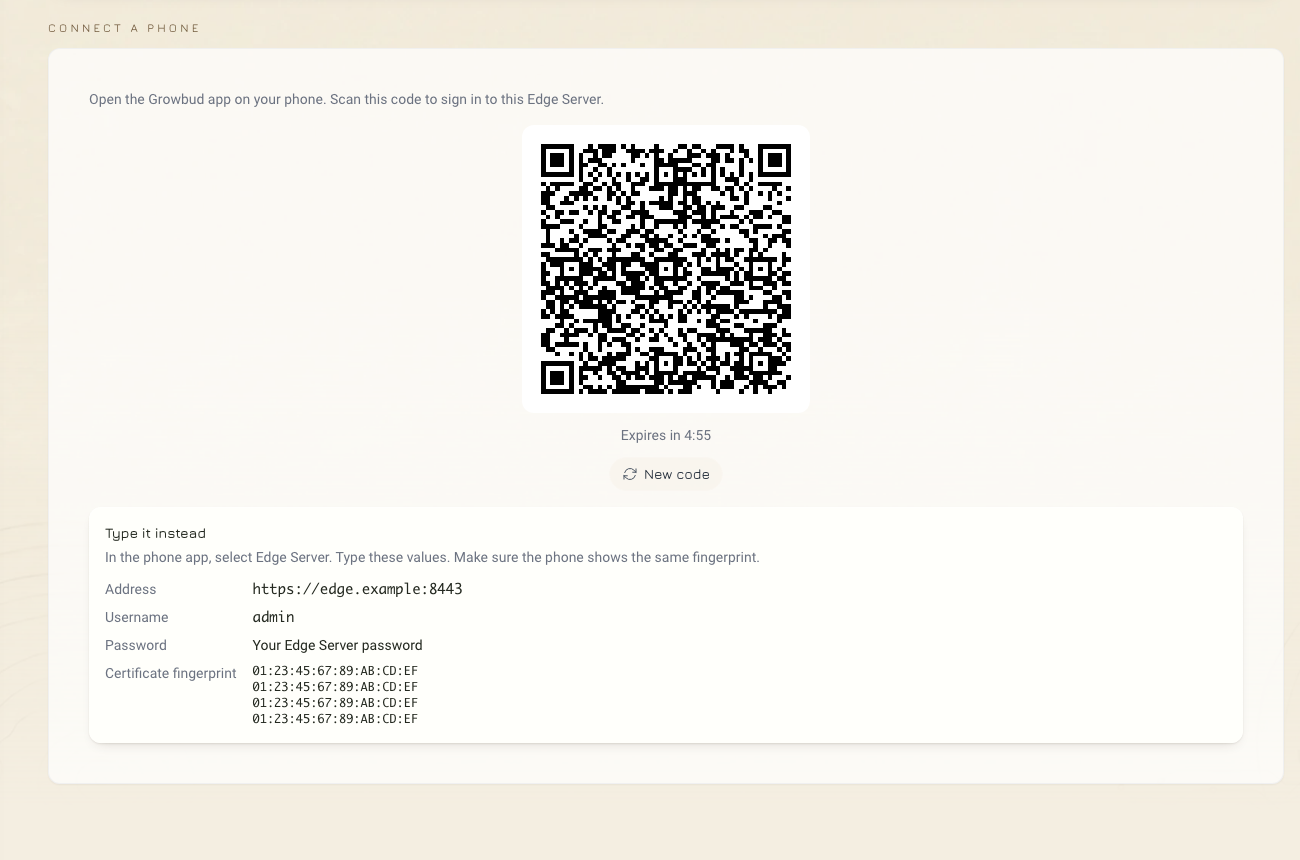
The Edge Server shows a QR code. The Growbud mobile app scans it to sign in to the Edge Server. Only an Edge Server makes this code.
| Item | Value |
|---|---|
| Where | Settings, then Phone sign-in, in the web app or the desktop app. It is the first Settings section on an Edge Server. |
| Valid for | 5 minutes |
| Uses | One. A new code makes the last code invalid. |
| Signs in as | The user who made the code |
- Sign in to the Edge Server in the web app or the desktop app.
- Open Settings, then Phone sign-in.
- Open the Growbud mobile app on the phone.
- Scan the QR code on the Connect a phone card.
- Make sure that the phone shows the same certificate fingerprint as the card.
When the code expires, the card shows The code expired. Make a new code. The card then makes a new code. If it does not, select New code.
The QR code holds the fingerprint of the Edge Server certificate. The fingerprint is a check value (SHA-256) that identifies one certificate. The phone trusts only that certificate.
To sign in the phone without the code, use the values under Type it instead on the same card: the address, the user name and your Edge Server password. Make sure that the phone shows the same fingerprint as the card.
See Link your phone to an Edge Server for what the phone does next.
Release 5.4.0 turns off the Growbud Cloud pairing code for an Edge Server. To move devices from Growbud Cloud, use Settings, then Edge Server, then Move devices in the desktop app on the Edge Server computer.
Open the web app from another computer
The web app and both APIs answer on HTTPS port 8443.
- Find the address of the Edge Server. In the desktop app, open Settings, then Phone sign-in. Read Address under Type it instead.
- On another computer on the same LAN, open
https://<your Edge Server address>:8443in a browser. - Accept the certificate warning. The certificate is self-signed.
- Sign in as
growbudwith your new password.
A request to port 80 goes to HTTPS.
The certificate names:
- The address that the Edge Server had at install.
- The other LAN addresses of the computer.
- The host name of the computer.
<host name>.local.localhost.
Use a name only when your network resolves it. The certificate is valid for 825 days. Each run of the installer renews it when fewer than 30 days are left.
For API calls, see Authentication. API calls use the same address and port.
Reserve the address in your router
The Edge Server needs a fixed LAN address. The certificate, the phone sign-in and each LoRaWAN gateway use the address. If your router gives the computer a new address:
- Browsers show a certificate warning for the new address.
- The phone sign-in code and Type it instead still give the old address.
- Phones that you signed in can refuse the new certificate. Sign them in again.
- A gateway goes on sending to the old address. Write its SD card again, or set its server address again.
Reserve the address before you sign in phones and connect gateways.
- Find the address of the Edge Server. See Open the web app from another computer.
- Sign in to the administration page of your router.
- Find the list of DHCP clients. The Edge Server computer shows its address there.
- Select the Edge Server computer.
- Reserve its current address. Routers call this "DHCP reservation", "static lease" or "address reservation".
- Save the change.
- Restart the Edge Server computer.
- Make sure that the address stays the same.
If the address already changed
The installer keeps the address that it wrote to /opt/growbud-edge/.env at the first install. A new run of the installer does not replace it. Remove the old address first. Then the installer writes the new one.
Run these commands in /opt/growbud-edge:
-
Remove the old address from the settings file:
sudo sed -i '/^EDGE_HOSTNAME=/d;/^EDGE_HOSTS=/d;/^AUTH_REDIRECT_ALLOW_LIST=/d' .env -
Run the installer. It writes the new address to
.envand starts the Edge Server again with it. If you installed with--hostname <name>, give the same option again.sudo ./install.sh -
Make a new certificate for the new address:
sudo docker compose run --rm -e TLS_FORCE=true tls -
Run the installer again. It loads the new certificate into the web server of the Edge Server (
kong) and trusts it on this computer:sudo ./install.sh -
In the desktop app, open Settings, then Phone sign-in. Make sure that Address under Type it instead shows the new address.
Then sign in each phone again, and write each gateway SD card again. See Flash the indoor gateway SD card.
Next
- Get the Edge Server to install the Edge Server on your own computer and make an API token.
- Link your phone to an Edge Server.
- Flash the indoor gateway SD card.
- Authentication for API tokens.